Documentation Index
Fetch the complete documentation index at: https://deepl-c950b784-retrieving-usage-data-how-to.mintlify.app/llms.txt
Use this file to discover all available pages before exploring further.
This page describes managing API keys in the self-admin area. Additionally, an Admin API for API key management is
available to a limited set of Pro API customers. Learn more here.
Get started
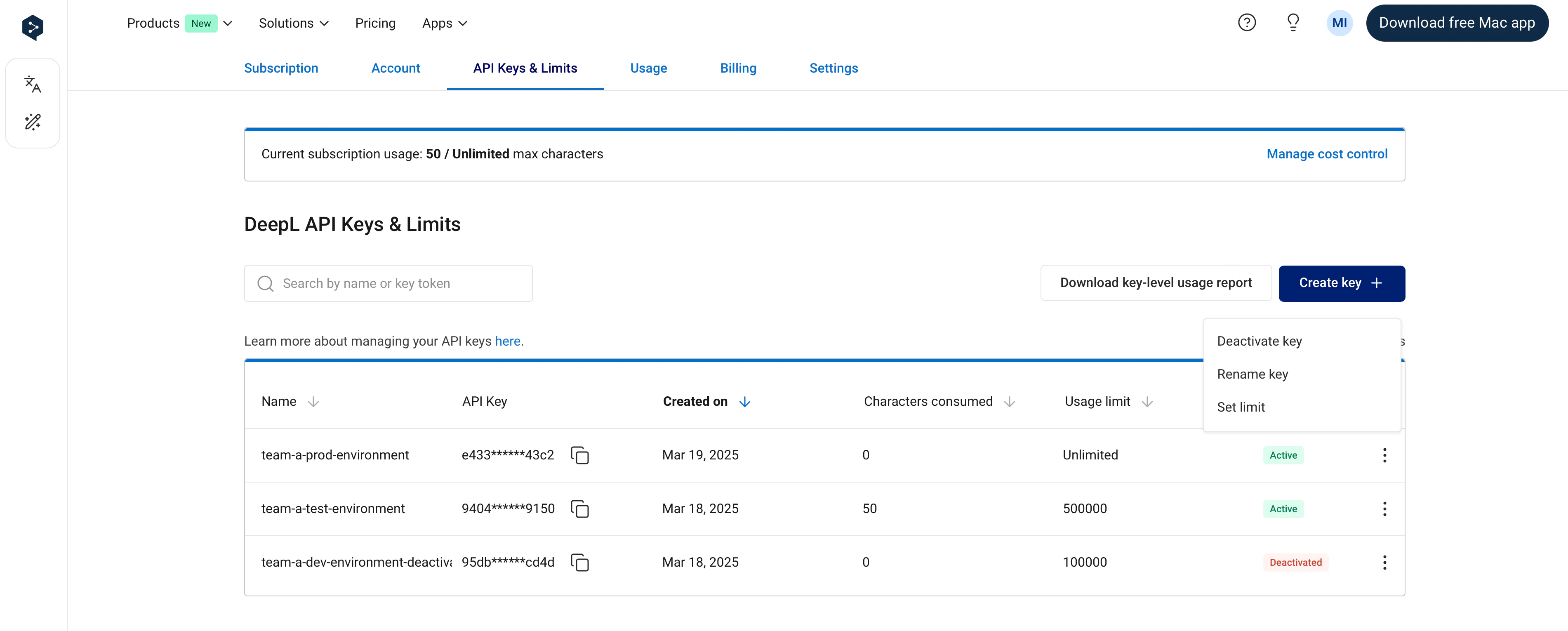
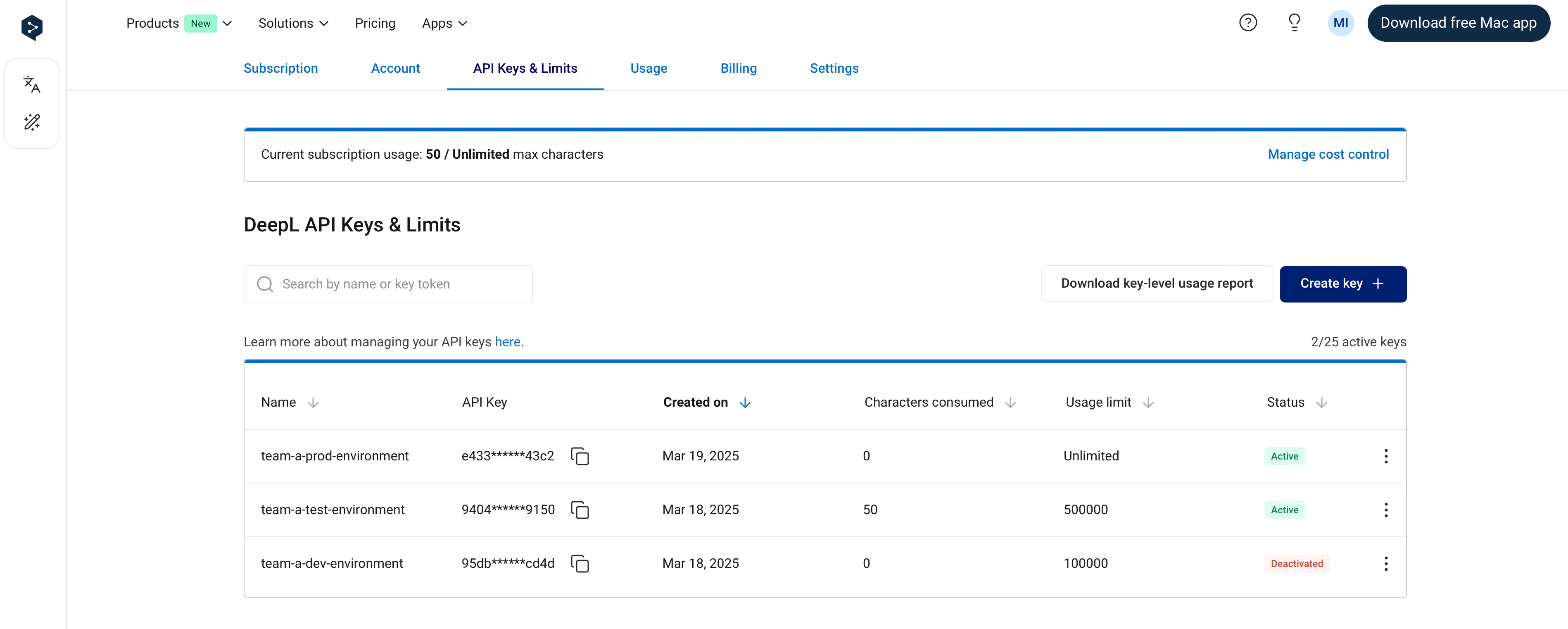
You can find and manage your API keys in the “API Keys & Limits” tab when signed into your DeepL API account. It’s possible to create multiple, simultaneously active API keys in a single API subscription.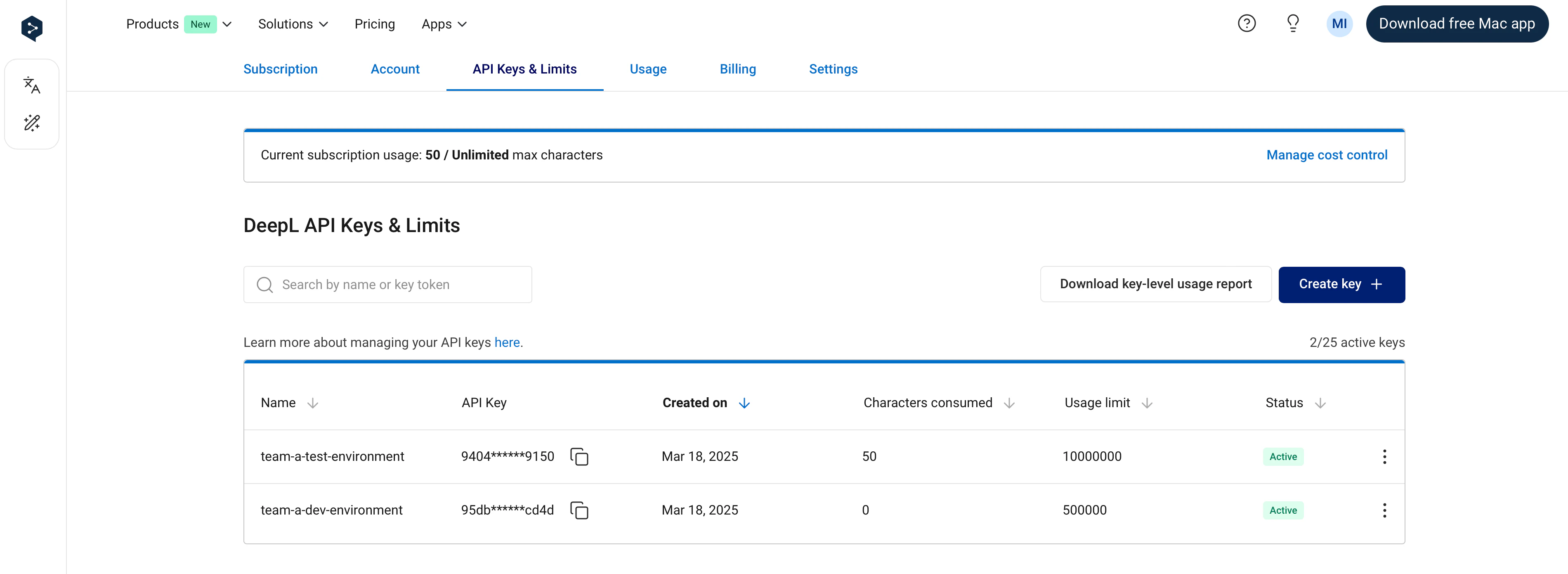
Basic API key management
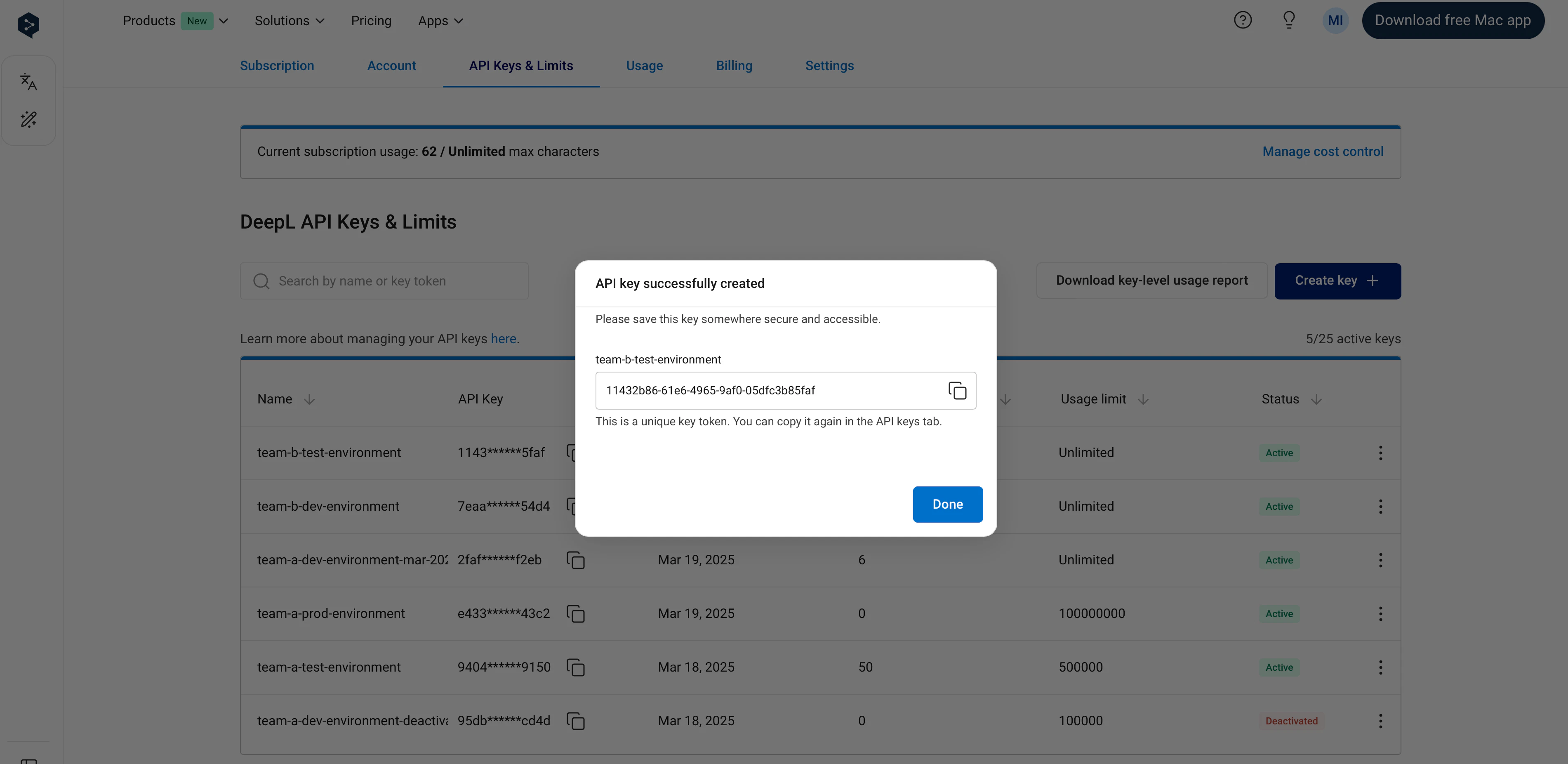
Create new key Creates a new API key. You can optionally give an API key a name of your choosing during the creation process. If you do not name the key, the name “DeepL API Key” will be given to the key automatically. Pro API subscribers can create up to 25 simultaneously active API keys. Free API subscribers can create up to 2 simultaneously active API keys. Giving your API keys a name during the key creation process makes it possible for you to search for the key by name using the search bar on the “API keys” tab: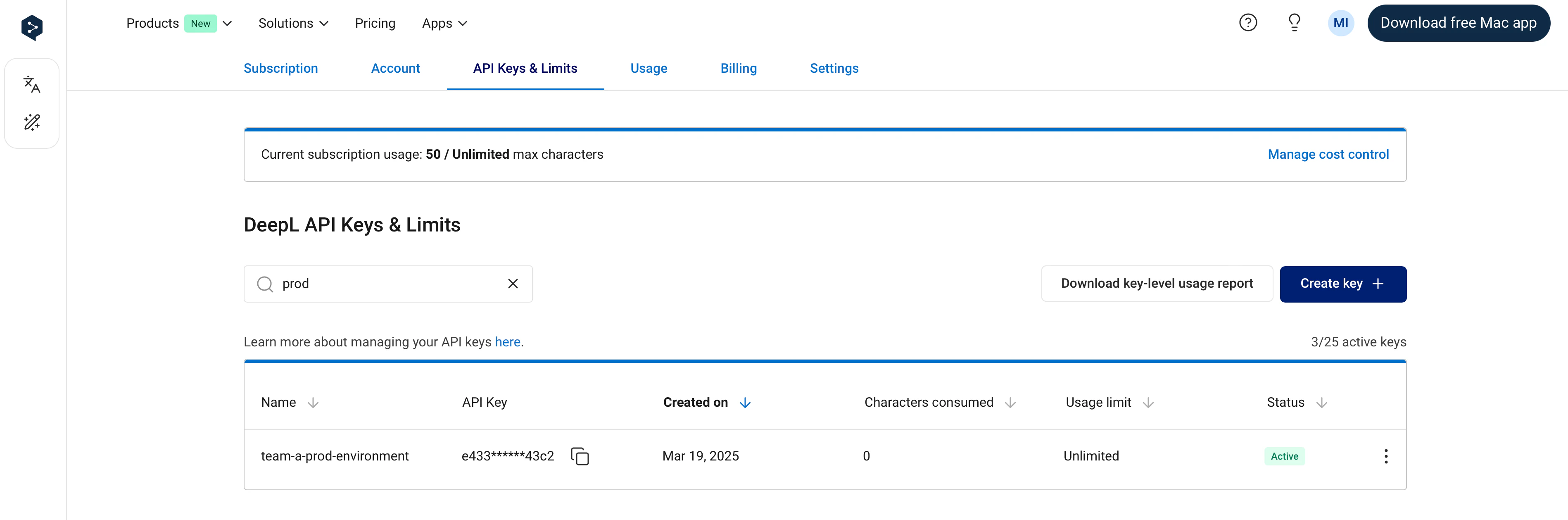
Deactivate key
Deactivates an active API key. IMPORTANT: an API key will stop working immediately when it is deactivated. After a key is deactivated, it cannot be reactivated—deactivating a key is permanent!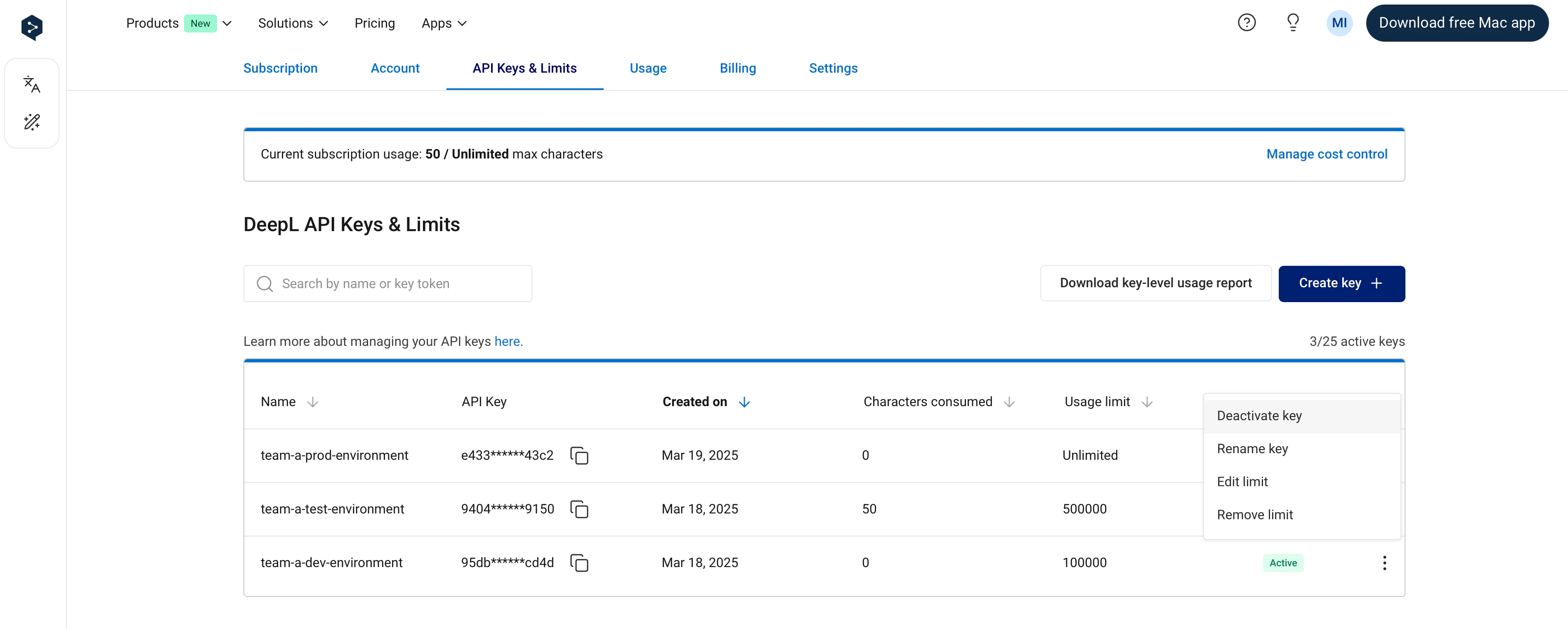
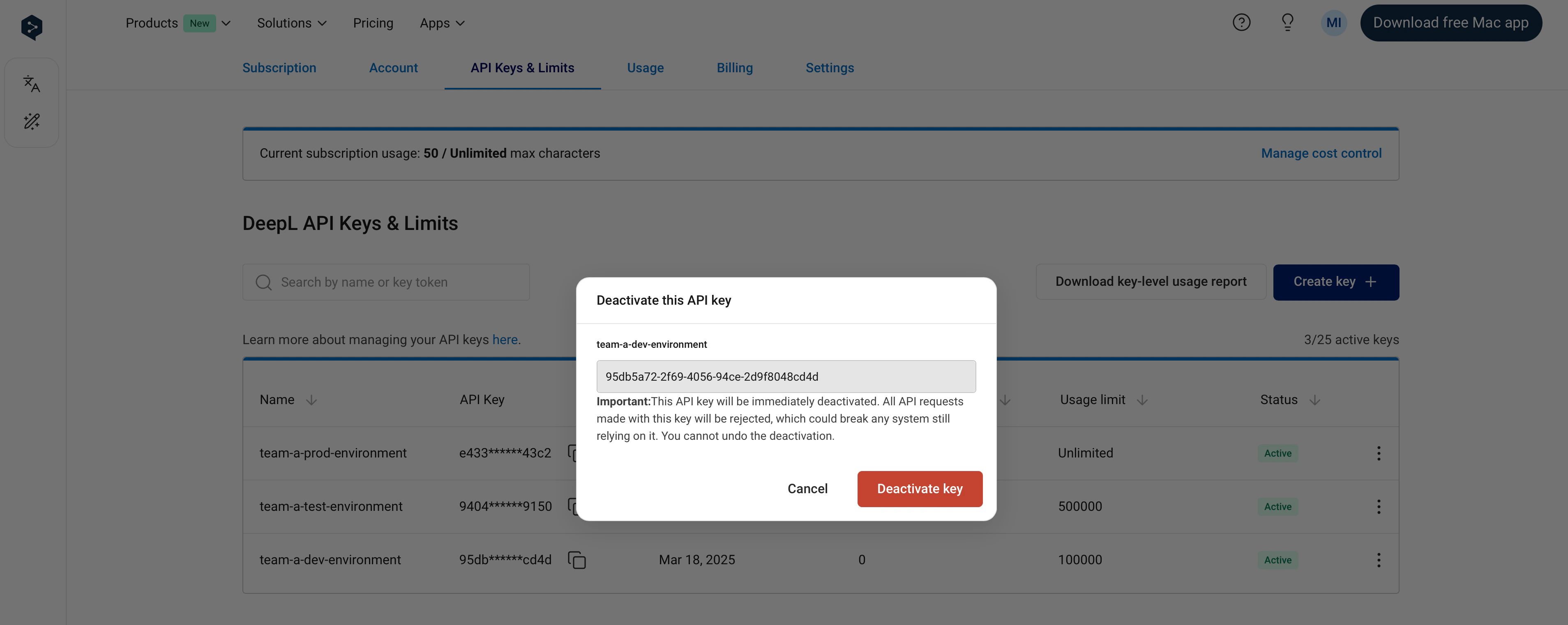
Rename key
Allows you to edit the name of an API key. Note that it is possible for two keys to have the same name. Both active and deactivated keys can be renamed.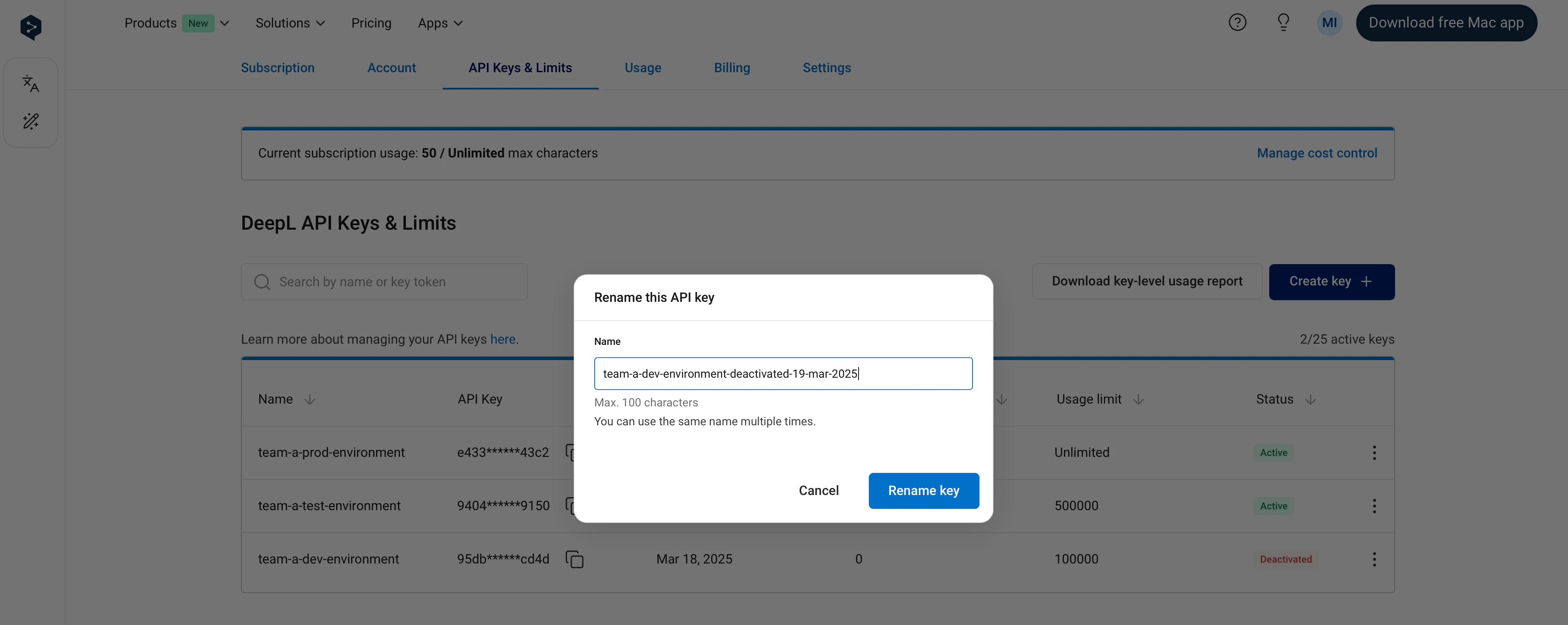
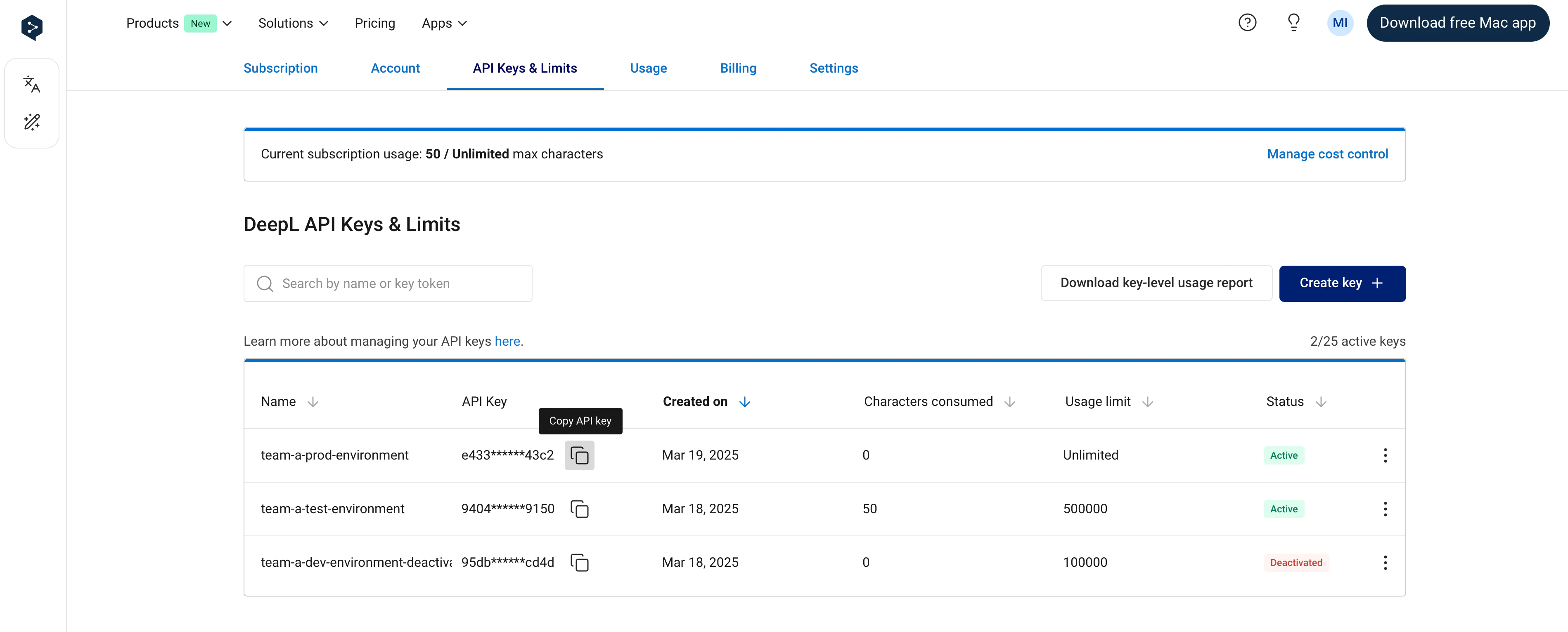
To learn how to see API key-level usage data, see Retrieving usage data.
Set API key-level usage limits
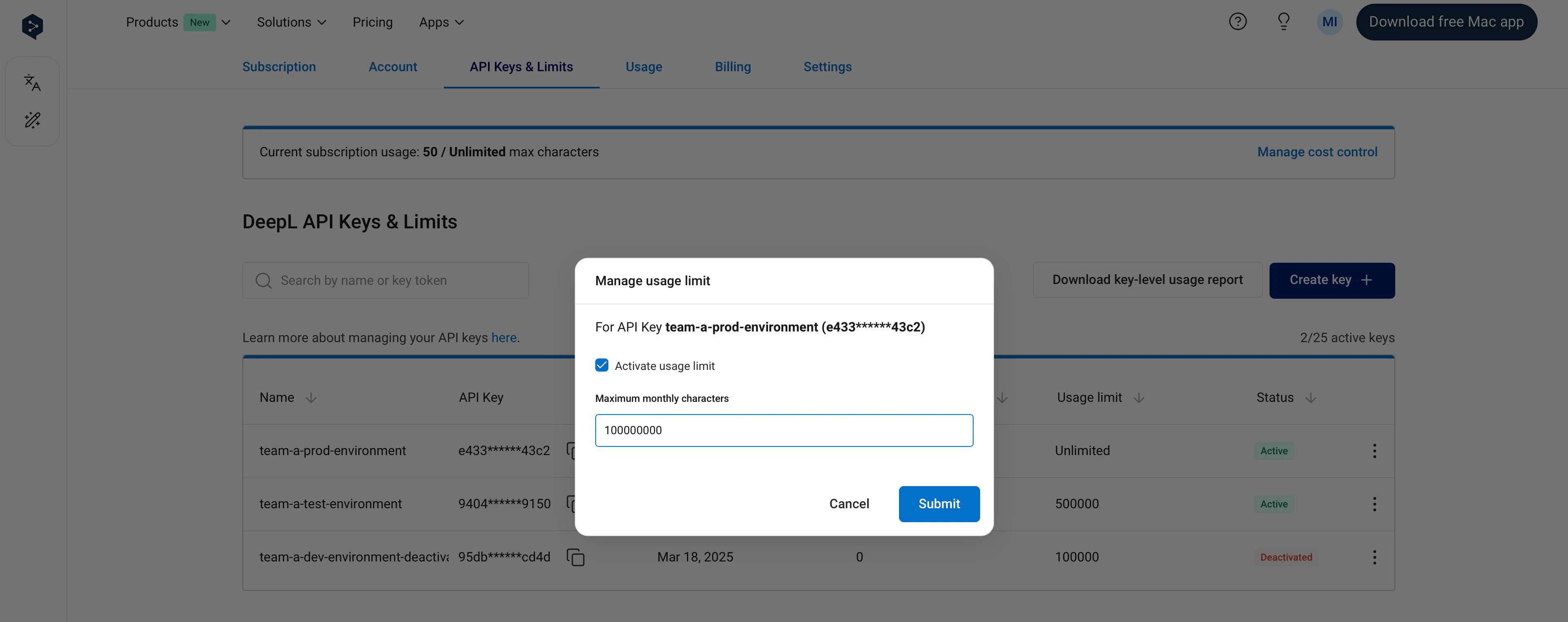
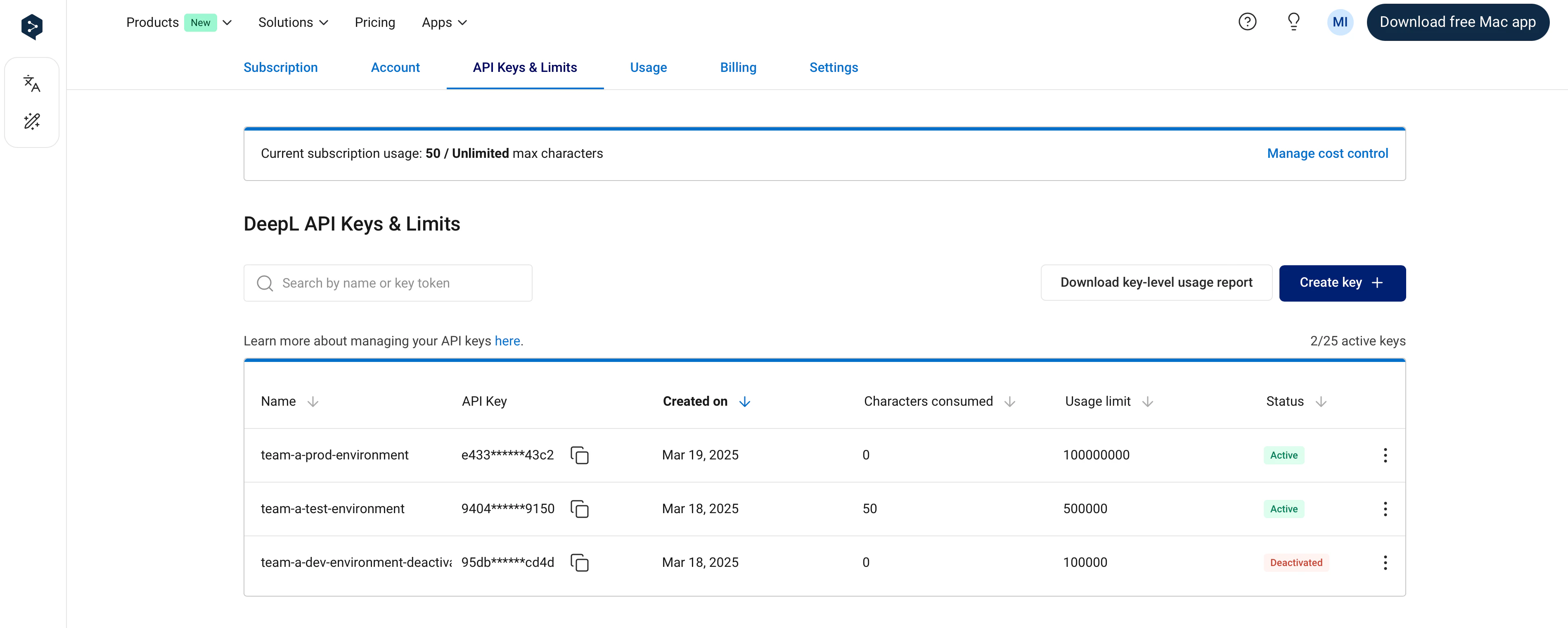
It’s possible to set an API key-level usage limit. Key-level limits restrict the number of total characters (across text translation, document translation, and text improvement) that can be consumed by an API key in a one-month usage period. You can see the dates of your current usage period in the Usage tab. For example, if you set a key-level usage limit of 1,000,000 characters, the API key will not consume more than 1,000,000 characters per usage period. In the “API Keys & Limits” tab, the “Characters consumed” column in the API keys table shows the number of characters consumed by an API key in the current usage period. The character count will “reset” at the start of the next usage period, at which point the key will again be able to consume characters. As with subscription-level cost control:- You’ll receive notification emails when 80% and 100% of a key-level limit has been reached
- The API will respond with
456 Quota exceedederrors when 100% of a key-level limit has been reached
It’s possible to set an API key-level limit to 0, which means the API key will not be able to consume characters.